Agents > Oz CLI
MCP servers (CLI reference)
# MCP servers (CLI reference) :::caution The Oz CLI (the `oz` binary) is a supported legacy interface. Existing users do not need to change their workflows. For new multi-stage development workflows, use [Warp Factories](/factories/). Warp will publish guidance before any support change. ::: MCP servers connect agents to external systems like GitHub, Linear, or Sentry. To use a [Model Context Protocol (MCP)](/agents/capabilities/mcp/) server from the CLI, use the `--mcp` flag with `oz agent run` or `oz agent run-cloud`. The CLI does not start every configured MCP server for every run. Explicit `--mcp` values start run-scoped servers. A selected agent profile can start installed servers on its MCP allowlist, while eligible file-based and global servers follow their own discovery path. For help choosing between local, cloud, and shared MCP workflows, see [Connect developer tools to agents with MCP workflows](/guides/external-tools/using-mcp-servers-with-warp/). For the shared configuration schema, full agent config examples, and cloud limitations, see [Connecting MCP servers to agents](/factories/mcp/) in the Factories docs. --- ## Using the `--mcp` flag The `--mcp` flag accepts four formats: * **UUID** — reference a Warp-shared MCP server by its UUID (find UUIDs with `oz mcp list`) * **Managed integration id** — reference a Warp-managed integration MCP server by its short id, such as `linear` (see [Passing Warp-managed integration servers by id](#passing-warp-managed-integration-servers-by-id)) * **Inline JSON** — pass a full MCP JSON configuration directly as a string * **File path** — path to a JSON file containing the MCP configuration You can repeat `--mcp` to include multiple servers. ### Passing MCP servers by UUID 1. Locate the MCP server UUID using `oz mcp list`. This command lists all MCP servers configured in your Warp account, including team-shared ones: ```sh $ oz mcp list +--------------------------------------+--------+ | UUID | Name | +===============================================+ | 1deb1b14-b6e5-4996-ae99-233b7555d2d0 | github | |--------------------------------------+--------| | 65450c32-9eb1-4c57-8804-0861737acbc4 | linear | |--------------------------------------+--------| | d94ade64-0e73-47a6-b3ee-14e5afec3d90 | Sentry | +--------------------------------------+--------+ ``` Alternatively, copy the UUID from Warp in **Settings** > **Agents** > **MCP servers**. <figure style={{ maxWidth: "375px" }}>  <figcaption>MCP servers page, showing a server with its UUID.</figcaption> </figure> 2. Pass the UUID to `--mcp`: ```sh $ oz agent run --mcp "1deb1b14-b6e5-4996-ae99-233b7555d2d0" --prompt "who last updated the README?" ``` ### Passing Warp-managed integration servers by id Some MCP servers are hosted by Warp and backed by a connected integration rather than a standalone installation with its own UUID. Warp recognizes these managed integration ids: * `linear` — the hosted [Linear](/factories/integrations/linear/) MCP server * `slack` — the hosted [Slack](/factories/integrations/slack/) MCP server * `jira` — the hosted [Jira](/factories/integrations/jira/) MCP server :::caution These short IDs are not general aliases for a service in an ordinary standalone CLI run. Use a configured MCP installation's UUID or URL for those runs. ::: Factory integration tools use the factory's declared and connected integrations. Standalone Jira-triggered workflows have [separate legacy setup](/platform/integrations/jira/). If an integration reference can't be resolved in the run's context, the server is skipped. ### Passing MCP servers as inline JSON or a file You can pass MCP configuration inline or via a file: ```sh # Inline JSON $ oz agent run --mcp '{"github": {"url": "https://api.githubcopilot.com/mcp/"}}' --prompt "list open issues" # From a file $ oz agent run --mcp ./my-mcp-config.json --prompt "list open issues" ``` The file must contain a valid MCP JSON object. For example: ```json { "github": { "url": "https://api.githubcopilot.com/mcp/" }, "sentry": { "command": "npx", "args": ["-y", "mcp-remote@latest", "https://mcp.sentry.dev/mcp"] } } ``` ### Combining multiple servers Pass `--mcp` multiple times to combine UUID references, inline JSON, and file-based configs in a single run: ```sh $ oz agent run \ --mcp "1deb1b14-b6e5-4996-ae99-233b7555d2d0" \ --mcp '{"sentry": {"url": "https://mcp.sentry.dev/mcp"}}' \ --prompt "open a PR that fixes the top Sentry error" ``` --- ## Environment variables on remote machines Warp syncs MCP server configuration between machines logged in with your Warp account, but **does not** sync the environment variables used in that configuration. When running on a remote machine, set any required secrets manually before running the agent: ```sh export MY_MCP_SERVER_ACCESS_TOKEN="..." $ oz agent run --mcp "904a8936-fa82-4571-b1d6-166c26197981" --prompt "use my MCP server to check for errors" ``` :::note For cloud agent workflows, use [Automation Platform-managed secrets](/platform/secrets/) to store and inject credentials safely — secrets are stored in the cloud and referenced by name in your config. For local runs, a secrets manager CLI such as [`op`](https://developer.1password.com/docs/cli/get-started/), [`pass`](https://www.passwordstore.org/), or [`gcloud secrets versions access`](https://cloud.google.com/secret-manager/docs/create-secret-quickstart#secretmanager-quickstart-gcloud) can fetch secrets on remote hosts without exposing them in your shell history. ::: --- ## Learn more * [MCP Servers (cloud agents)](/factories/mcp/) — configuration schema, full agent config file examples, and cloud agent limitations * [Model Context Protocol (MCP)](/agents/capabilities/mcp/) — configuring MCP servers in Warp for local agents * [Connect developer tools to agents with MCP workflows](/guides/external-tools/using-mcp-servers-with-warp/) — choose the setup path for local sessions, cloud runs, team sharing, and repeatable automation * [Secrets](/platform/secrets/) — store credentials in Warp so agents can access them at run time without exposing them in config filesTell me about this feature: https://docs.warp.dev/agents/cli/oz-cli/mcp-servers/Connect agents to external tools like GitHub, Linear, and Sentry by passing MCP servers to the --mcp flag as a UUID, inline JSON, or file path.
MCP servers connect agents to external systems like GitHub, Linear, or Sentry. To use a Model Context Protocol (MCP) server from the CLI, use the --mcp flag with oz agent run or oz agent run-cloud.
The CLI does not start every configured MCP server for every run. Explicit --mcp values start run-scoped servers. A selected agent profile can start installed servers on its MCP allowlist, while eligible file-based and global servers follow their own discovery path.
For help choosing between local, cloud, and shared MCP workflows, see Connect developer tools to agents with MCP workflows. For the shared configuration schema, full agent config examples, and cloud limitations, see Connecting MCP servers to agents in the Factories docs.
Using the --mcp flag
Section titled “Using the --mcp flag”The --mcp flag accepts four formats:
- UUID — reference a Warp-shared MCP server by its UUID (find UUIDs with
oz mcp list) - Managed integration id — reference a Warp-managed integration MCP server by its short id, such as
linear(see Passing Warp-managed integration servers by id) - Inline JSON — pass a full MCP JSON configuration directly as a string
- File path — path to a JSON file containing the MCP configuration
You can repeat --mcp to include multiple servers.
Passing MCP servers by UUID
Section titled “Passing MCP servers by UUID”- Locate the MCP server UUID using
oz mcp list. This command lists all MCP servers configured in your Warp account, including team-shared ones:
$ oz mcp list+--------------------------------------+--------+| UUID | Name |+===============================================+| 1deb1b14-b6e5-4996-ae99-233b7555d2d0 | github ||--------------------------------------+--------|| 65450c32-9eb1-4c57-8804-0861737acbc4 | linear ||--------------------------------------+--------|| d94ade64-0e73-47a6-b3ee-14e5afec3d90 | Sentry |+--------------------------------------+--------+Alternatively, copy the UUID from Warp in Settings > Agents > MCP servers.
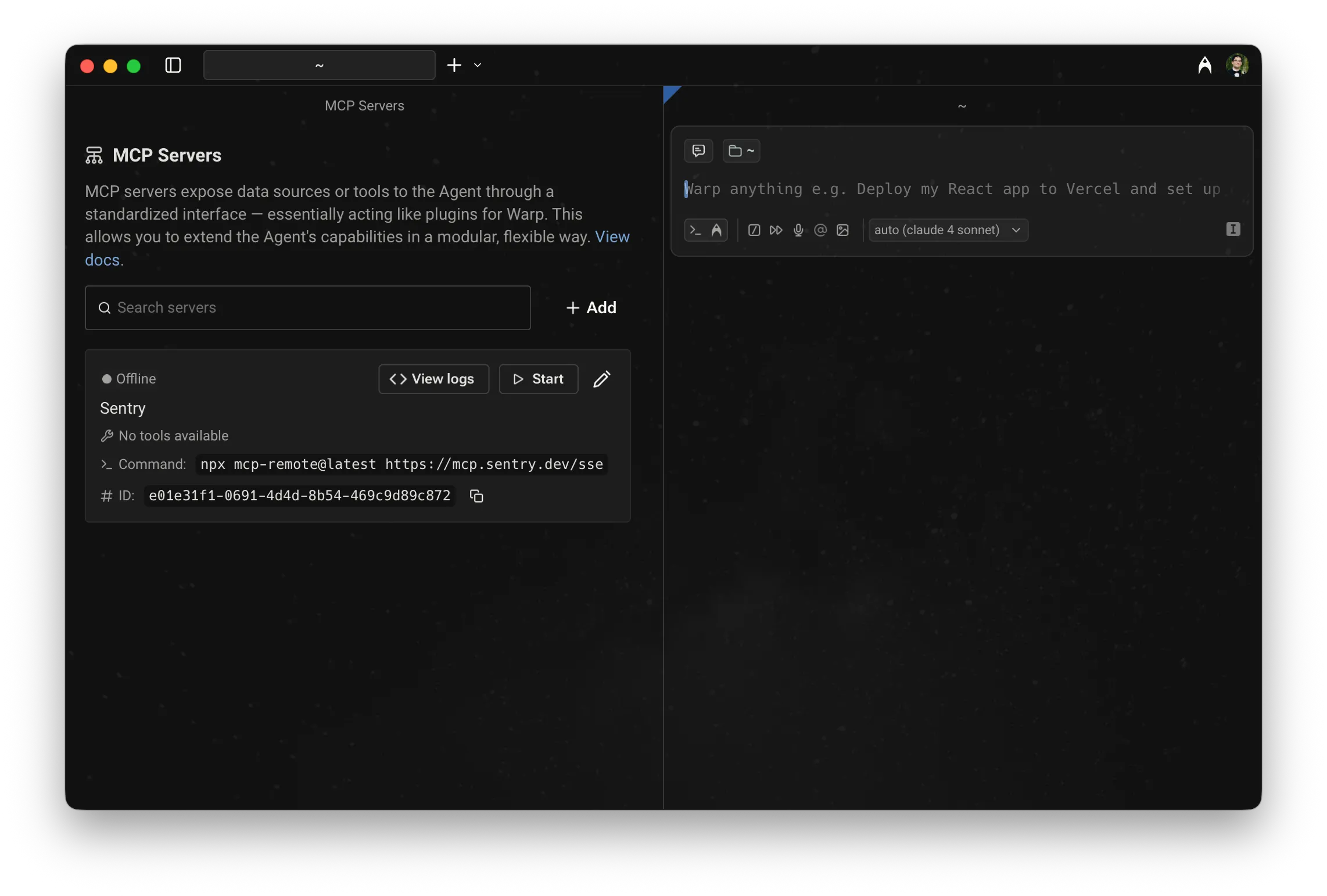
- Pass the UUID to
--mcp:
$ oz agent run --mcp "1deb1b14-b6e5-4996-ae99-233b7555d2d0" --prompt "who last updated the README?"Passing Warp-managed integration servers by id
Section titled “Passing Warp-managed integration servers by id”Some MCP servers are hosted by Warp and backed by a connected integration rather than a standalone installation with its own UUID.
Warp recognizes these managed integration ids:
linear— the hosted Linear MCP serverslack— the hosted Slack MCP serverjira— the hosted Jira MCP server
Factory integration tools use the factory’s declared and connected integrations. Standalone Jira-triggered workflows have separate legacy setup. If an integration reference can’t be resolved in the run’s context, the server is skipped.
Passing MCP servers as inline JSON or a file
Section titled “Passing MCP servers as inline JSON or a file”You can pass MCP configuration inline or via a file:
# Inline JSON$ oz agent run --mcp '{"github": {"url": "https://api.githubcopilot.com/mcp/"}}' --prompt "list open issues"
# From a file$ oz agent run --mcp ./my-mcp-config.json --prompt "list open issues"
The file must contain a valid MCP JSON object. For example:
{ "github": { "url": "https://api.githubcopilot.com/mcp/" }, "sentry": { "command": "npx", "args": ["-y", "mcp-remote@latest", "https://mcp.sentry.dev/mcp"] }}Combining multiple servers
Section titled “Combining multiple servers”Pass --mcp multiple times to combine UUID references, inline JSON, and file-based configs in a single run:
$ oz agent run \ --mcp "1deb1b14-b6e5-4996-ae99-233b7555d2d0" \ --mcp '{"sentry": {"url": "https://mcp.sentry.dev/mcp"}}' \ --prompt "open a PR that fixes the top Sentry error"Environment variables on remote machines
Section titled “Environment variables on remote machines”Warp syncs MCP server configuration between machines logged in with your Warp account, but does not sync the environment variables used in that configuration. When running on a remote machine, set any required secrets manually before running the agent:
export MY_MCP_SERVER_ACCESS_TOKEN="..."$ oz agent run --mcp "904a8936-fa82-4571-b1d6-166c26197981" --prompt "use my MCP server to check for errors"Learn more
Section titled “Learn more”- MCP Servers (cloud agents) — configuration schema, full agent config file examples, and cloud agent limitations
- Model Context Protocol (MCP) — configuring MCP servers in Warp for local agents
- Connect developer tools to agents with MCP workflows — choose the setup path for local sessions, cloud runs, team sharing, and repeatable automation
- Secrets — store credentials in Warp so agents can access them at run time without exposing them in config files